Picture a production run sitting idle while three people make phone calls trying to work out whether enough components are on hand to start building. No single source of truth. No automatic alerts. Just spreadsheets and guesswork. For manufacturers who deal with layered assemblies and multi-stage builds, this is a daily reality — until they move to a properly configured ERP.
This guide walks through everything you need to know about Bill of Materials (BOM) configuration, multi-level production order management, and MRP planning inside Odoo Manufacturing. Whether you are new to the platform or looking to unlock more advanced capabilities, the steps below translate directly into a production floor that runs on accurate data instead of tribal knowledge.
What Is a Bill of Materials (BOM) in Odoo Manufacturing?
A Bill of Materials in Odoo Manufacturing is a structured recipe that defines every component, sub-assembly, quantity, and operation required to produce a finished product. It is the backbone of Odoo’s Material Requirements Planning (MRP) engine: procurement, production scheduling, inventory reservation, and cost calculation all derive from the BOM.
Unlike a static parts list in a spreadsheet, an Odoo BOM is a live document connected to real-time inventory levels, supplier lead times, and open production orders. When you confirm a manufacturing order, Odoo reads the BOM, checks available stock, calculates what needs to be purchased, and — for multi-level products — automatically generates the sub-assembly orders required to meet the build schedule.

BOM Types in Odoo: Choosing the Right Structure
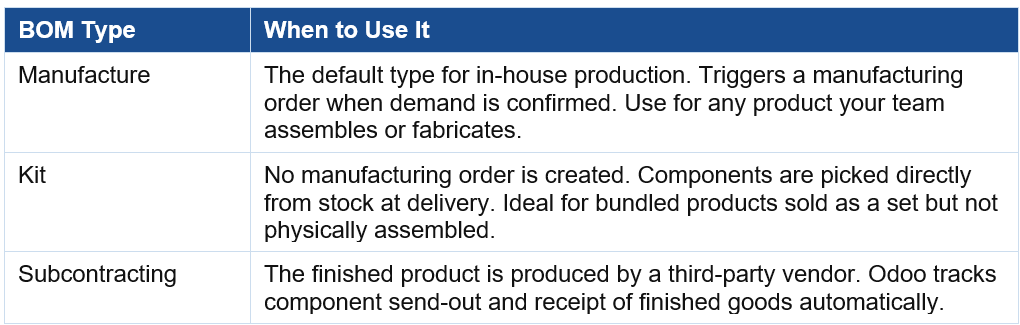
Odoo supports three BOM types, each suited to a different production model. Selecting the correct type at setup prevents significant rework later.
Understanding Multi-Level BOMs and Why They Matter
A multi-level BOM in Odoo (also called a hierarchical or nested BOM) is used when a finished product contains one or more sub-assemblies that must themselves be manufactured before the top-level build can proceed. Each sub-assembly has its own BOM, its own production order, and its own component requirements.
A practical example from industrial manufacturing:
- Level 1 — Finished Product: Industrial Control Cabinet
- Level 2 — Sub-assemblies: Wiring Harness, Enclosure Frame, DIN Rail Assembly
- Level 3 — Purchased Components: Terminal blocks, cable ducts, breakers, mounting hardware
When the Level 1 production order is confirmed, Odoo automatically creates separate manufacturing orders for each Level 2 sub-assembly. Each of those orders can be scheduled independently, assigned to different work centres, and tracked in real time — without anyone manually creating child orders or chasing status updates across teams.
This is the core capability that separates a properly configured Odoo MRP environment from a collection of disconnected tools. Production supervisors see the full picture from a single screen; floor operators see only the work orders relevant to their station.
Step-by-Step: Creating and Managing BOMs in Odoo Manufacturing
Step 1 — Access BOM Configuration
Navigate to Manufacturing → Configuration → Bills of Materials. This is where all BOM records live, regardless of type or product line. Bookmark this path — it is your starting point for every production setup task in Odoo.
If you cannot see the Manufacturing module in your sidebar, confirm that it has been activated under Settings → Apps. The module must be installed before BOM management is available.
Step 2 — Create a New BOM Record
Click New and complete the header fields before touching the component list:
- Product: Select the finished good this BOM produces. If the product does not yet exist, create it from the product master first.
- BOM Type: Choose Manufacture, Kit, or Subcontracting as appropriate for your production model.
- Quantity: The output quantity this BOM produces per build (usually 1). If your process produces in batches of 10, enter 10 and scale all component quantities accordingly.
- Company: Required in multi-company Odoo setups. Select the legal entity responsible for this production.
- Reference: An optional internal code used to cross-reference engineering drawings or product specifications.
Do not save yet — the BOM is not functional until components are added.
Step 3 — Build the Component List
In the Components tab, click Add a Line for each input material or sub-assembly. For each line, specify:
- Product: The component or sub-assembly being consumed.
- Quantity: The amount consumed per BOM output quantity.
- Unit of Measure: Ensure this matches the UoM set on the product master, or Odoo will convert incorrectly.
- Apply on Variants: If your finished product has multiple variants (colour, size, configuration), you can restrict specific components to specific variants here.
For multi-level BOMs, when you add a sub-assembly as a component, Odoo recognises that it has its own BOM and will automatically link the two levels in MRP planning. No additional configuration is required to establish the parent-child relationship.

Step 4 — Define Work Centre Operations
The Operations tab is where the physical work happens. Add a line for each production step — cutting, forming, assembly, testing, quality inspection — and assign each to a specific Work Centre. For each operation, set:
- Work Centre: The machine or team station responsible for this step.
- Duration Computation: Manual (fixed time per order), By Product (time scales with quantity), or Real Time (operators clock in/out).
- Duration and Duration Expected: Set targets for capacity planning and efficiency tracking.
Populating operations transforms Odoo from a component tracker into a full work order management system. Floor supervisors can see queue depth at each work centre, identify bottlenecks before they cause delays, and feed actual time data back into job costing — all without leaving the manufacturing module.
Step 5 — Configure By-Products (Where Applicable)
If your process generates secondary outputs — offcuts, recovered materials, co-products in chemical or food manufacturing — define them in the By-Products tab. Odoo will automatically move these into stock and assign them a cost value when the production order is closed. This is essential for accurate inventory valuation and compliance in industries where secondary material tracking is regulated.
Step 6 — Review, Validate, and Save
Before saving, use the BOM Structure & Cost report (accessible via the top menu on the BOM record) to verify the full component tree and calculated cost. This report renders the entire multi-level hierarchy in a single view, making it straightforward to spot missing components, incorrect quantities, or cost anomalies before they enter a live production order.
Click Save. The BOM is now active and will be selected automatically when a manufacturing order is created for the associated product.
From BOM to Production Order: How Odoo MRP Connects the Dots
Once BOMs are in place, Odoo’s MRP scheduler takes over. When you run the replenishment scheduler (Manufacturing → Planning → Run Scheduler), Odoo analyses demand from confirmed sales orders, minimum stock rules, and manual forecasts, then generates suggested production orders and purchase orders to meet that demand.
For multi-level products, the scheduler works top-down: it identifies what the top-level production order needs, checks on-hand stock of sub-assemblies, and generates child production orders for any sub-assemblies with insufficient stock. Purchase orders are generated simultaneously for any raw materials below reorder thresholds.
The result is a full production plan — from finished goods back to purchased components — generated in seconds from a single scheduler run. What previously required a manufacturing planner to manually trace through a multi-tab spreadsheet now happens automatically, with each dependent order linked so that changes cascade correctly.

Key Odoo Manufacturing Module Features for Production Teams
Real-Time Inventory Synchronisation
Every component consumed during a production run is deducted from stock in real time. There is no end-of-day batch job, no manual stock adjustment, and no lag between what the production floor has consumed and what the system shows as available. For teams managing components shared across multiple production lines, this eliminates the over-commitment of shared stock that leads to unplanned shortages mid-build.
Work Order Scheduling and Work Centre Management
The Odoo work order interface gives floor supervisors a live view of what is queued at each work centre, which orders are in progress, and what is completed. Machine downtime, employee time, and scrap quantities can all be logged directly from the work order screen — or via the Odoo Manufacturing tablet interface on the shop floor.
Lot and Serial Number Traceability
For manufacturers operating in regulated industries — food, pharmaceuticals, electronics with warranty obligations — Odoo’s lot and serial number tracking provides full forward and backward traceability. You can trace any finished product back to the specific component batch it was built from, and forward to identify every customer order that received product from a given batch. This is essential for recall management and quality audit responses.
BOM Cost Analysis and Manufacturing Reporting
Odoo’s built-in BOM cost analysis report calculates the theoretical cost of a finished product from its BOM, using current average costs or standard costs for each component. This feeds directly into product pricing decisions, margin analysis, and the identification of high-cost components where supplier negotiations would have the greatest impact.
BOM Versioning and Archiving
When a product design changes, Odoo’s BOM versioning workflow allows you to archive the current BOM and create a new version. All historical production orders retain a reference to the BOM version they were built against, providing a complete audit trail. New production orders pick up the active BOM automatically, ensuring the production floor always works from current specifications.